What Is the AutoStart Feature in a Signage App and Why Is It Important?
A signage app should do more than display your content on a screen.
It should help your business keep those screens running without requiring your staff to restart the TV, open the application and set the content to play every time there is a power cut.
We recently came across this issue while working with a client operating multiple food and beverage outlets in Electronic City, Bengaluru.
Whenever there was a power cut, their staff had to switch on the TVs, access the content from a USB pen drive and set it to play again.
With four screens in an outlet, this could take around 15 to 20 minutes for one instance of powercut. And when power cuts happen three or four times a day, the same work has to be repeated every time by staff.
Now, think about what the staff are supposed to be doing during those 15 to 20 minutes. They should be attending to customers, taking orders and managing the outlet, not spending their valuable working time getting the screens to play content again.
This is why the AutoStart feature in digital signage software and your display hardware deserves more attention than it usually gets.
It is not just a technical feature that makes an application open automatically. It is about reducing unnecessary work, keeping business screens operational and making digital signage easier to manage in real working conditions.
To understand its importance, let's look at why businesses need AutoStart, how it works and what you should look for when choosing a signage app.
Why Does AutoStart Matter in Digital Signage?
The problem is not switching on a TV. It is to do it again and again.
When a business invests in digital signage, the expectation is straightforward. The screens should display menus, offers, videos and other business content without someone having to manage them throughout the day.
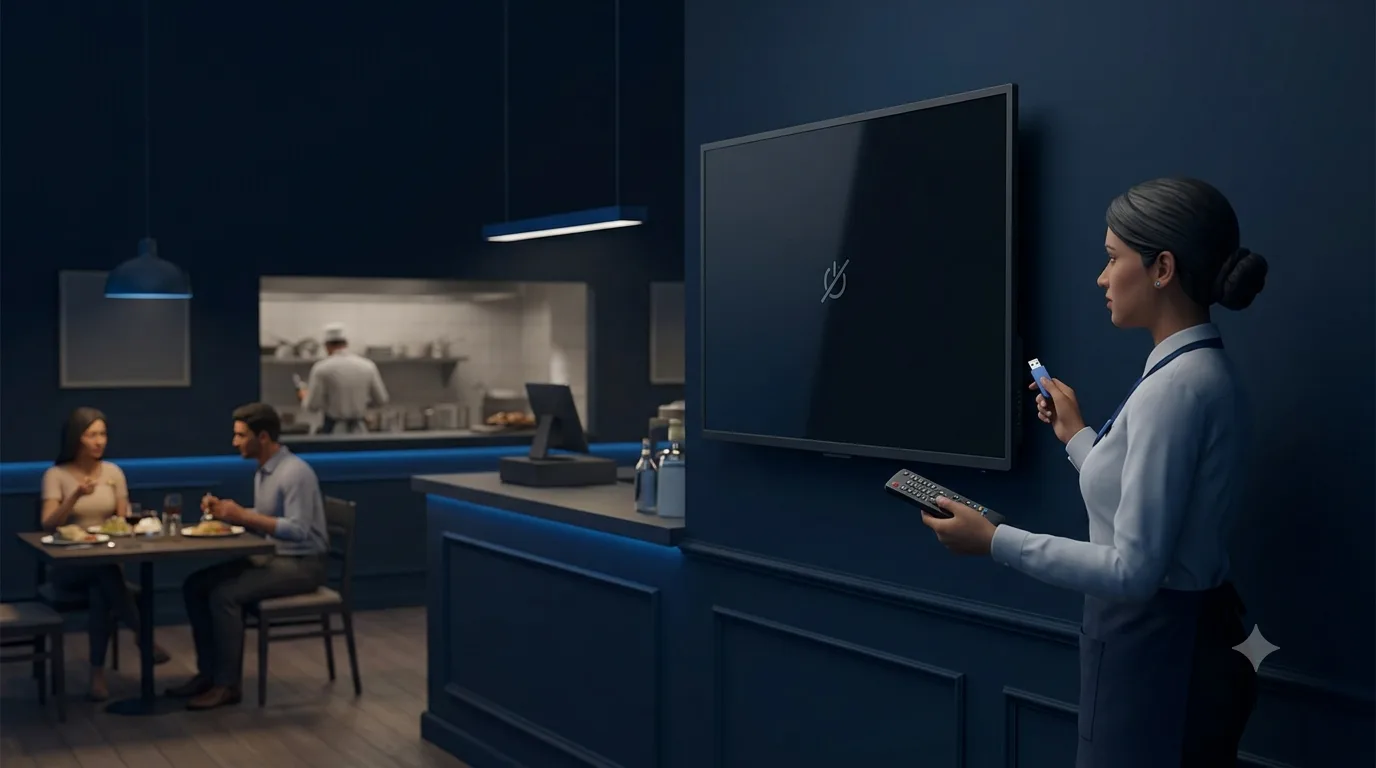
But what happens when the power goes off?
Depending on the display and its configuration, the TV may remain switched off even after electricity returns. In other cases, the TV switches on, but the signage app does not launch. Someone has to attend to the screen, open the application or access the content from a USB pen drive and set everything up again.
This is the kind of situation we have seen our clients face.
In our client's case in Electronic City, getting four screens running again could take around 15 to 20 minutes for a single interruption. This is the time spent on one instance, not the total time lost throughout the day.
If the same thing happens three or four times a day, the staff may have to repeat the process several times. The exact time lost will depend on how many screens are affected and how long it takes to restore them.
The issue is not limited to restaurants. Any business using digital signage can face similar challenges when the display or application does not recover automatically.
1. Staff time is valuable
In a food and beverage outlet, staff have enough work to handle already. During busy hours, they need to take orders, serve customers, coordinate with the kitchen and make sure the outlet is running properly.
If someone has to leave this work to restart four screens, the business is spending staff time on something that could have been handled automatically.
And this is not a one-time setup activity. If the power goes off repeatedly, the same work has to be done repeatedly.
A reliable AutoStart setup helps reduce this manual effort, allowing employees to concentrate on their actual work rather than managing the screens.
2. Digital menus should be available when customers need them
Restaurants use digital menu boards to display food items, prices, combo offers and special promotions. These screens help customers understand what is available and make their choices.
When a screen stops playing content, that information is no longer visible. Even if the interruption lasts only a few minutes, someone may have to attend to the display before the menu becomes available again.
AutoStart helps bring the signage application back after a supported restart. When combined with automatic content loading and playback, it reduces the need for staff to set the menu up manually.
3. Managing multiple screens should not become another job
Consider a business with four screens in every outlet and several outlets across different locations.
If every power interruption requires staff to restart the TVs and select the content again, the amount of manual work increases with the number of screens and outlets.
The purpose of digital signage software should be to simplify the management of these screens, not create another task for employees.
Reliable startup and playback features make the system easier to manage, particularly when displays are expected to operate for long hours with minimal supervision.
How Does AutoStart Work?
Understanding AutoStart properly requires looking at two separate levels: the hardware and the application.
Both need to work correctly for a digital signage system to resume normal operation after a power interruption.
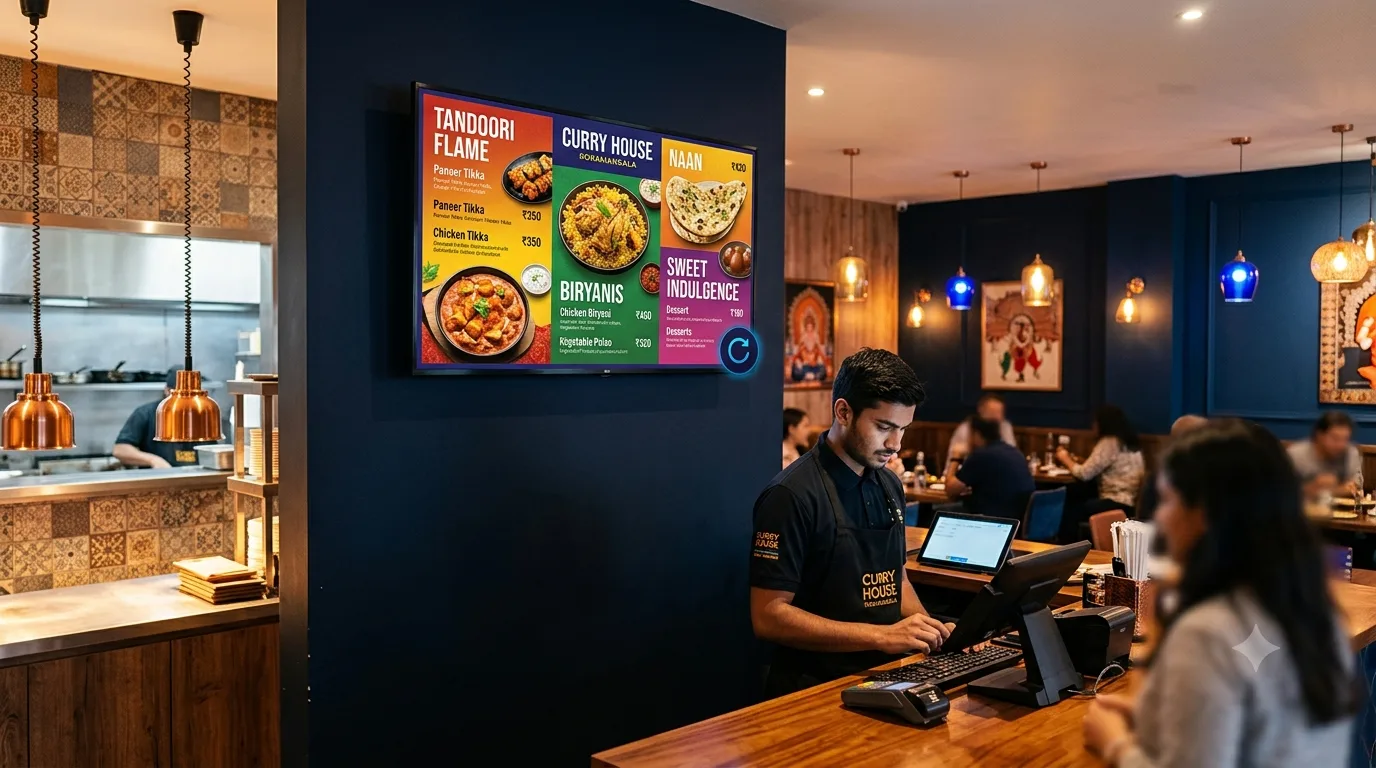
1. Hardware-level AutoStart: The TV must switch on
The first requirement is that the TV or display itself must switch on when electricity returns.
This behaviour is not guaranteed on every commercial display. Depending on the manufacturer and model, the power-recovery setting may need to be configured through the factory menu or another supported configuration interface.
If the display remains switched off after a power cut, the signage app cannot launch on that display. Someone will still have to switch it on manually.
This is why hardware-level power recovery is an important part of setting up digital signage, especially in locations where power interruptions are common.
2. Application-level AutoStart: The signage app must launch
Once the display or connected media player starts, the signage application must launch automatically.
However, not all devices handle application startup in the same way. Different manufacturers may apply different restrictions to background services, battery optimisation and automatic application launches.
If a signage app relies on only one startup mechanism, its behaviour may vary across different supported devices.
This is where application-level AutoStart becomes important. The player needs to account for the startup behaviour of the operating system and the restrictions imposed by the device manufacturer.
The important distinction is simple: hardware-level AutoStart helps the display power on, while application-level AutoStart helps the signage app launch. One does not replace the other.
Why do signage apps use multiple AutoStart mechanisms?
Even among Android devices, the way applications start can differ. Some devices may restrict background services, while others may have manufacturer-specific requirements.
A signage app intended to run unattended needs to account for these differences.
One approach is to use multiple mechanisms that can trigger the same application. These mechanisms operate in parallel rather than requiring the user to choose one mechanism and configure another if it fails.
ICE Signage, for example, has five startup mechanisms built into its Android player:
- Boot Receiver: Responds to supported device startup broadcasts.
- Foreground Service: Helps keep the player service running under Android's service rules.
- AlarmManager: Provides scheduled system callbacks that can support application recovery.
- OEM-Specific Intents: Accommodates manufacturer-specific startup behaviour where supported.
- Direct Boot: Supports certain operations before the user unlocks the device, subject to Android's restrictions.
These mechanisms serve different technical purposes, but they can trigger the same application. They operate in parallel and are built into the player, so users do not have to configure each mechanism separately.
This is particularly useful for digital signage, where the application is expected to start and continue its work without someone having to open it manually.
However, application-level startup mechanisms do not replace hardware power recovery. If the TV remains switched off, that issue still needs to be addressed separately.
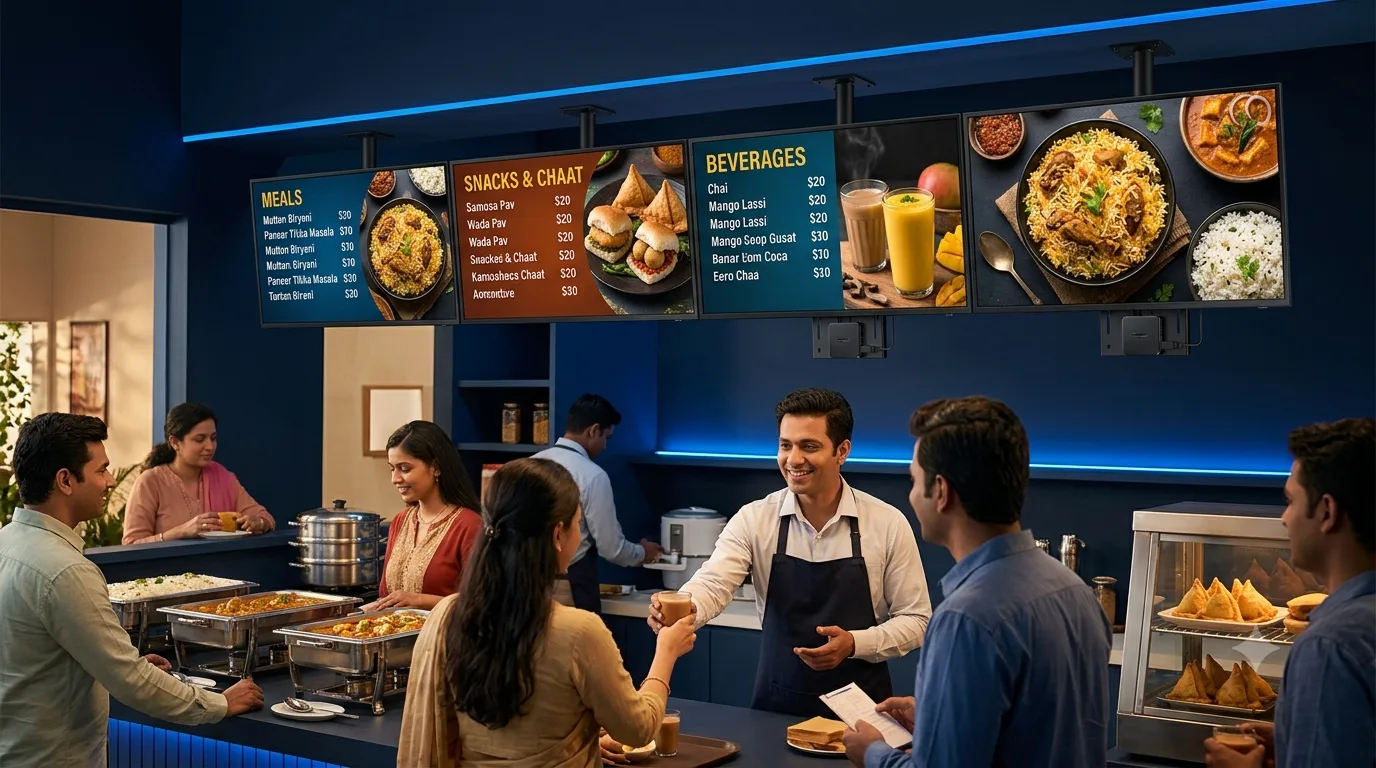
Auto boot vs Auto Start vs Auto Load vs Offline Playback
Another important point is that AutoStart alone does not guarantee that the content will immediately start playing.
These three features handle different parts of the process.
Auto Boot turns on the the Commercial TV or Display unit automatically upon the powersupply without intervernsion of remote controller.
Auto Start launches the signage application when the device starts.
Auto Load loads the assigned content or playlist after the application opens.
Offline Playback allows previously downloaded content to continue playing without an active internet connection.
For example, the TV may switch on and the signage app may launch, but the player could still be waiting for someone to select a playlist. In this case, AutoStart has worked, but automatic content loading has not.
Similarly, if the app launches and loads the menu but the internet connection is unavailable, offline playback allows the menu to continue playing if the required content has already been downloaded and stored locally.
For businesses that want their screens to operate with minimal supervision, these features should be considered together.
How does AutoStart work across different platforms?
The same principle applies across digital signage platforms, but the technical implementation differs.
Digital signage software for Android
Android is widely used for digital signage through compatible commercial displays, media players and TV boxes. However, different Android devices can have different startup restrictions.
When choosing digital signage software for Android, check whether the player supports automatic startup after a restart, how it handles application recovery and whether the assigned content loads without manual intervention.
Digital signage software for Samsung Commercial Panel
Samsung commercial panels come in different configurations, including displays using Tizen OS and installations with external media players.
When evaluating digital signage software for Samsung Commercial Panel installations, identify the actual platform being used. A native Tizen application and an Android player connected to a Samsung display do not use the same startup method.
Digital signage software for LG Commercial TV
LG commercial TVs also come in different configurations, including webOS-based displays and setups using external media players.
For digital signage software for LG Commercial TV installations, check whether the application runs natively on the display or through a connected player. The startup configuration depends on the platform and the hardware being used.
Windows-based digital signage
Windows-based players have their own startup options and configuration requirements. The appropriate method depends on the Windows version, the application and how the device is configured.
Across Android, Windows, Samsung Tizen and LG webOS, the basic principle remains the same: the hardware must power on, and the signage player must launch and resume the assigned content according to the platform's capabilities.
A solution designed for one operating system should not automatically be assumed to work natively on another.
What Should You Look for in a Signage App?
Now that we understand why AutoStart matters and how it works, what should businesses actually check before choosing digital signage software?
Can free digital signage software handle AutoStart?
Some free digital signage software supports automatic application startup, but the available features depend on the provider, plan and supported devices.
When comparing free digital signage software, do not check only whether it allows you to upload images, videos and menus. Find out what happens after the device restarts.
Does the app open automatically? Does the assigned content load without manual intervention? Can downloaded content continue playing when the internet connection is unavailable?
These are practical questions worth asking before selecting a solution.
The software should not just help you put content on a screen. It should also make the day-to-day management of those screens easier.
Other things worth checking
Apart from AutoStart, look for these capabilities:
- Automatic content loading: The assigned playlist should load without requiring someone to select it manually.
- Offline playback: Downloaded content should remain available when the internet connection is interrupted.
- Remote content management: Menus, offers and videos should be updateable remotely where the platform supports it.
- Platform compatibility: Confirm that the software supports the actual TV, operating system or media player you intend to use.
- Software updates: Check whether updates can be deployed remotely and how the player behaves during an update.
- Recovery behaviour: Understand what happens after a device restart or application failure, rather than assuming every situation is handled automatically.
These checks help you understand whether the signage app is suitable for your actual business requirements.
How ICE Signage Approaches the AutoStart Problem
At ICE Signage, our focus is on reducing the manual work involved in keeping digital screens running.
Our experience with clients operating food and beverage outlets shows why this matters. When staff have to switch on TVs, access USB drives and set content to play again after repeated power cuts, the same work keeps taking time away from their regular responsibilities.
ICE Signage includes a five-layer AutoStart system built into its Android player. The five mechanisms operate in parallel to support application startup across different Android device behaviours and manufacturer restrictions.
Once the app is installed, users do not have to configure each startup mechanism separately.
The hardware-level power recovery setting must still be configured correctly. The five application startup mechanisms do not switch on a TV that remains powered off.
ICE Signage also supports offline-first playback, allowing previously downloaded content to continue playing without an active internet connection. Its cloud-based content management system lets businesses update screens remotely, while over-the-air updates help keep the player software updated.
ICE Signage's player is designed for Android devices. Businesses using native Windows, Samsung Tizen or LG webOS players should check the compatibility of the relevant platform rather than assume the Android player runs natively on all these systems.
You can learn more about the platform at ICE Signage.
Digital Signage Should Reduce Work, Not Add to It
The real importance of AutoStart is not simply that an application opens automatically. It is that businesses should not have to keep attending to their screens after every power interruption.
As we have seen with our client in Electronic City, getting four screens running again can take around 15 to 20 minutes for a single instance. When the same work has to be repeated several times a day, it becomes a recurring operational issue.
A properly configured setup requires the display to power on automatically, the signage app to launch, and the assigned content to load and resume playing.
When choosing digital signage software, look beyond content uploads and playlist management. Check how the system handles hardware power recovery, application startup, automatic content loading and offline playback.
At the end of the day, your staff should be focusing on customers and business operations, not repeatedly switching on TVs and setting the content to play again.
That is what a well-designed signage app should help you achieve.